Jak przyspieszyć pracę programu
| Produkt | InstalSystem 5 EnergoSystem 5 |
| Typ artykułu | PORADA I WSKAZÓWKA |
| Ostatnia aktualizacja | 2026-03-03 |
Opis problemu
Pakiet InstalSystem w wersji 5 wymaga komputera o stosunkowo dużej mocy obliczeniowej i dobrych parametrach. Na słabszych komputerach może występować problem ze spowolnieniem pracy programu. Szczególnie może to być widoczne przy większych plikach, lub w sytuacji, gdy komputer w tym samym czasie jest dodatkowo obciążony innymi aplikacjami. Skala problemu zależy też od aktualnie używanych funkcji i okien programu.
Sposób rozwiązania
Hardware recommendations
- Verify that the computer meets Hardware requirements.
- In the case of using laptop:
- It is important to remember that laptops run faster when connected to a power source than when running on battery power. Balanced mode limits the clock speed of processors or graphics cards when a certain temperature is exceeded, thereby restricting the performance of the laptop and, accordingly, reducing the performance of the software.
- Pay attention to the energy saving plan set in Windows, because by default it is usually set to balanced or energy saving mode. This can also significantly decrease the productivity.
- When running on battery power alone, the default energy saving plan will almost certainly use only the integrated graphics card, which has much lower performance and reduces the clock speed.
Software recommendations
Podkład files
Aspects that can considerably affect the productivity of the program:
- Using very large Podkład files,
- Using Podkład files with a wide area (the building itself sometimes occupies only a fragment of the Podkład area),
- Using Podkład files with a very large number of objects (e.g., hatching).
To deal with this, we recommend to execute the following steps before performing the operation Importuj podkład to InstalSystem 5:
- Trim the project file to the area that is needed for the work,
- Clean the file of objects that negatively affect the performance of the program.
Settings and configuration
Podkład
- Disable layers that are not required to be used in AUTO mode:
- In the Tabela danych / AUTO dla warstw field,
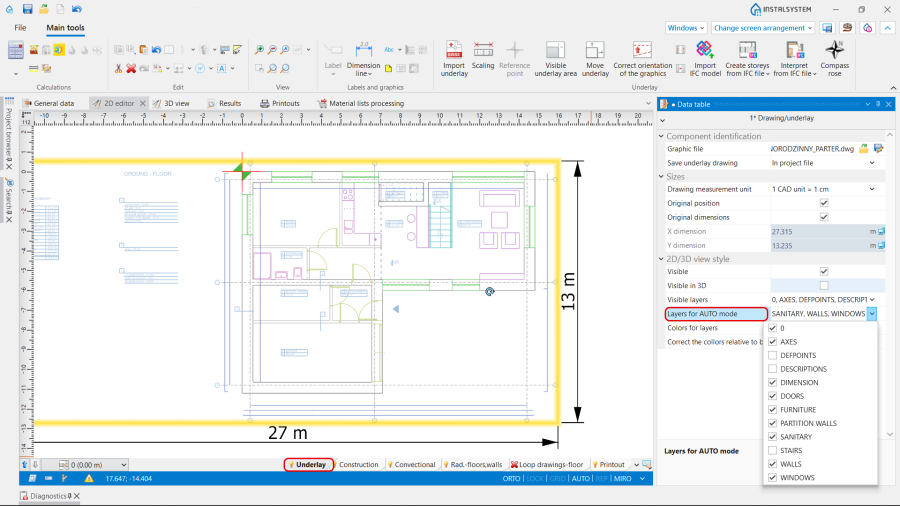
1. AUTO dla warstw. - Using the right mouse button, click on the layout element and choose Wyłącz AUTO dla warstwy: %s,
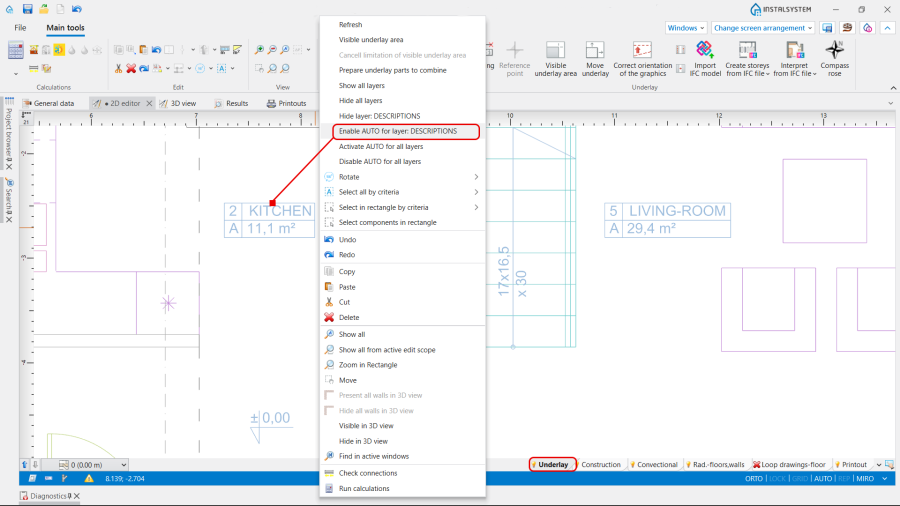
2. Wyłącz AUTO dla warstwy: %s. - In the right mouse button menu select Wyłącz AUTO dla wszystkich warstw.
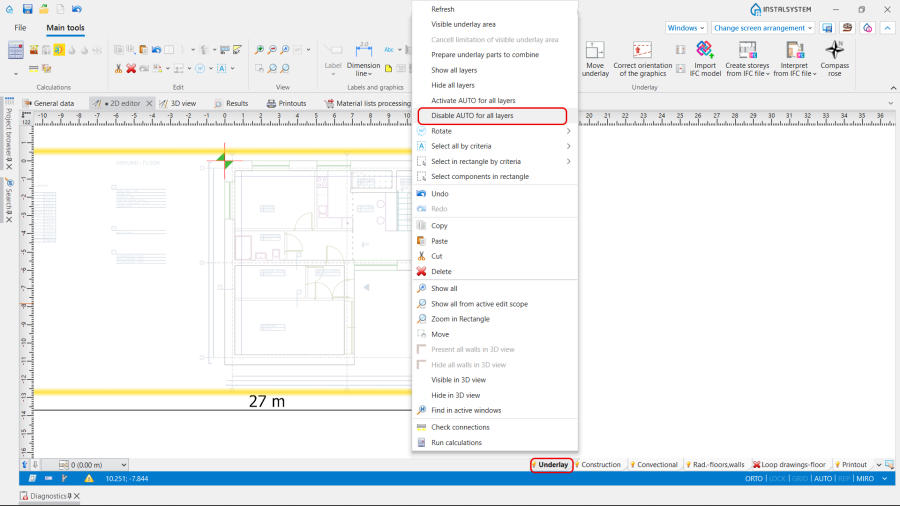
3. Wyłącz AUTO dla wszystkich warstw.
- In the Tabela danych / AUTO dla warstw field,
- Disable the visibility of unnecessary layers:
- In the Tabela danych / Warstwy widoczne field,
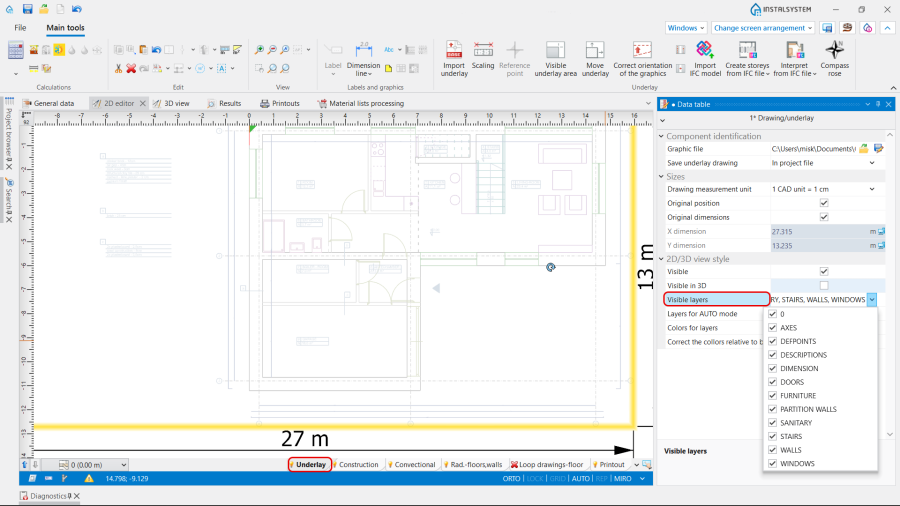
4. Warstwy widoczne. - Using the right mouse button, click on the layout element and choose Ukryj warstwę: %s,
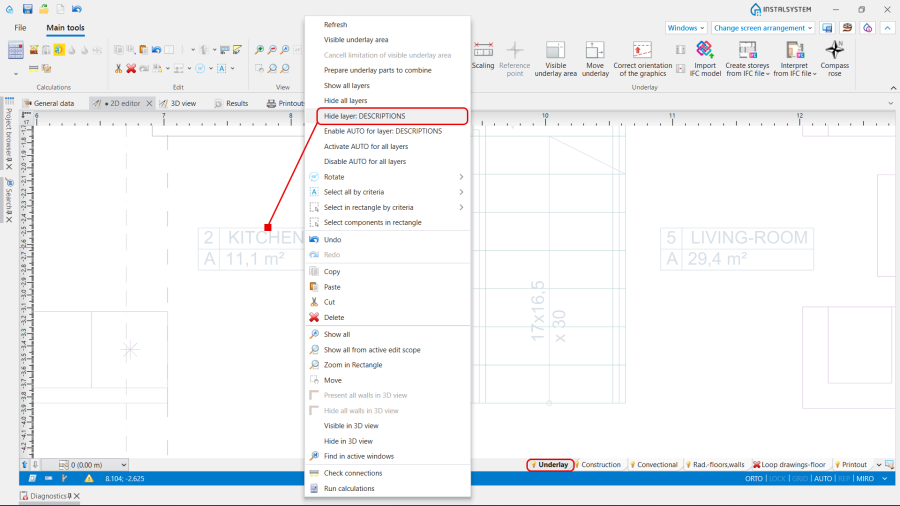
5. Ukryj warstwę: %s. - In the right mouse button menu select Ukryj wszystkie warstwy.
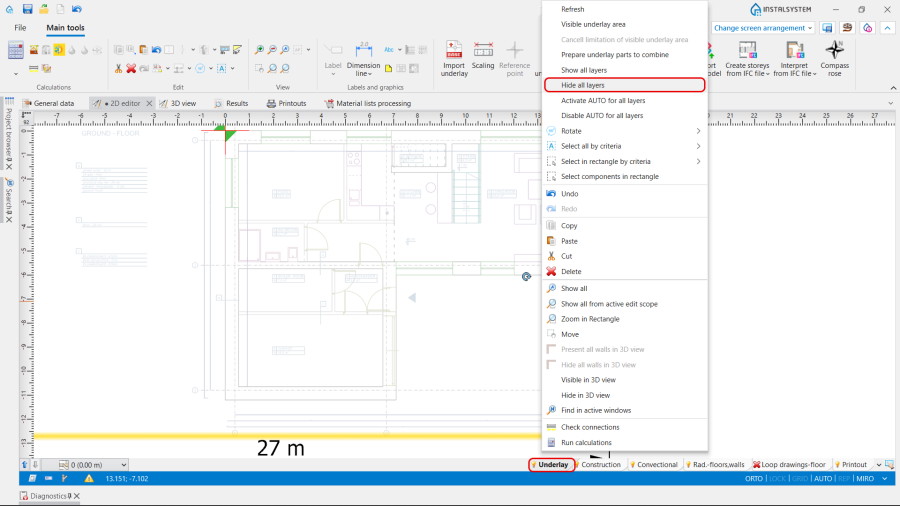
6. Ukryj wszystkie warstwy.
- In the Tabela danych / Warstwy widoczne field,
- Limit the visibility of the Podkład using the function Widoczny obszar podkładu. Więcej informacji na ten temat: Import underlay files


Punkt odniesienia
Punkt odniesienia on each Kondygnacja should be located close to the relevant object. Więcej informacji na ten temat: Obtaining the correct mutual alignment of underlays on the individual storeys.
Antialiasing
This option can be switched off in the program Settings (after switching it off, close and restart the program to see the effect).

Widok 3D
The Widok 3D can be configured in different ways in the status bar, which also affects the program's efficiency. Więcej informacji na ten temat: Navigating in 3D view - status bar.
Specifically:
- Turn Off Cienie elementów,
- Use Animacja obrotu widoku only in certain situations,
- Disable labels when viewing the project.
Szczególnym przypadkiem powodującym spowolnienie pracy programu są rozbudowane podkłady DWG zawierające dużą liczbę warstw i/lub cechujące się dużą szczegółowością elementów, i/lub charakteryzujące się dużą wielkością rysunku.
Przeglądarka projektu and Wyszukaj window
We recommend disabling these windows during graphic editing, because when enabled, the tree of edited or inserted into the Edytor 2D objects is constantly updated.
Koryguj przepływy
In some cases involving the design of Instalacje grzewcze, when the function Koryguj przepływy is checked ON, the number of iterations required to perform this function practically takes up the total Instalacje grzewcze i chłodnicze calculation time.

Więcej informacji na ten temat:Koryguj przepływy
However, we do not recommend disabling it. The solution is to adjust the Δθgrz,min - minimum temperature drop on radiator. This parameter influences on the quantity of such calculations. By default, it is set to 5 K. Changing it can significantly affect the calculation time.
NOTE: Before making adjustments, ensure that you understand their impact on the project in general.
Screen configuration
- Close all windows that are not needed at the particular moment.
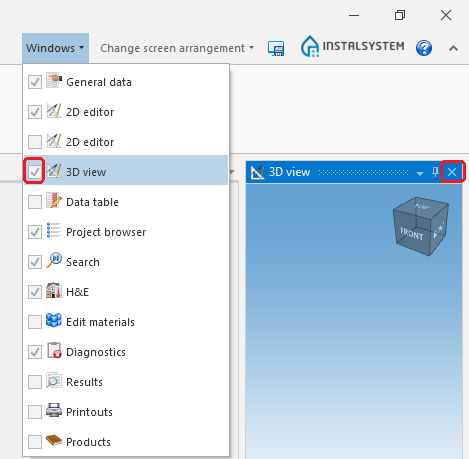
9. 3D Editor. - Hide editing scopes that are not used.
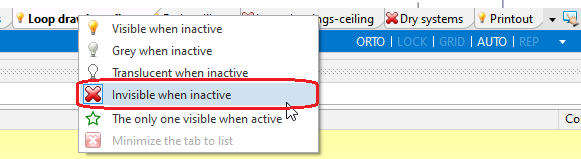
10. Hide edit scopes.


Ogólne zalecenia
- We strongly recommend updating the software, as some versions improve performance.
- Wyłączyć inne, nieużywane w danym momencie, aplikacje i usługi działające w tle.
- In some situations, excluding project folders from antivirus scanning can help speed up processing.
- Work on only one project at a time.
- Disable unnecessary modules,
- All other things being equal, it is not recommended to work remotely with large project files, as data transfer entails very high overhead costs, and this has nothing to do with the software itself.
| W przypadku uwag do tego artykułu zachęcamy do przesłania krótkiej informacji na info@instalsoft.com. |
|---|